> ## Documentation Index
> Fetch the complete documentation index at: https://authsome.ai/docs/llms.txt
> Use this file to discover all available pages before exploring further.
# Quickstart
> Install authsome, then either drive it from an AI agent via the skill or use the CLI directly to log in and run agents with injected credentials.
There are two ways to use Authsome day-to-day:
* **Agent-driven.** Install the skill and let your coding agent (Claude Code, Cursor, Codex, etc.) call Authsome on your behalf.
* **CLI-driven.** Run `authsome` commands yourself from your shell or scripts.
This page covers both. Pick the one that matches how you will actually use it.
## Prerequisites
* Python 3.13 or newer
* A graphical browser on the same machine (for the initial login). For SSH or CI, see [Headless setup](/guides/headless-device-code).
## Verify the install
```bash theme={null}
authsome --version
authsome doctor
```
`doctor` runs health checks on the home directory layout, encryption availability, and provider parsing. All checks should pass. For other install paths, see [Installation](/installation).
When you're not sure of the right command or flag, read the built-in help before guessing. `authsome --help` lists every top-level command; `authsome --help` shows the flags for that command. Agents driving the CLI should consult these before falling back to web search.
## Path 1: Agent-driven (recommended)
Install the Authsome skill into your agent. The skill teaches the agent how to call Authsome when it needs credentials. It handles missing credentials, revokes and re-logs in on 401s, asks for `--scopes` on 403s, and never asks you for tokens directly.
See [Agent integrations](/integrations/agents/index) for per-agent install paths (Claude Code, Codex, Cursor, OpenCode, LangChain, LlamaIndex, OpenAI Agents SDK, Anthropic SDK). The pattern across all of them is the same: drop the skill into the agent's skill / context directory, then ask the agent to perform a task that needs an external service.
Sample tasks that exercise the skill:
```text theme={null}
Star the repo agentrhq/authsome.
Get my last five emails from Gmail.
Check my Stripe balance.
```
The agent runs `authsome login ` itself when it hits a missing credential. The browser opens on your machine for the OAuth consent, then the agent picks up from there with the proxy-injected token. You do not paste any keys.
## Path 2: CLI-driven
If you're scripting against authsome directly or you want to manually pre-seed a credential before launching anything, drive the CLI yourself.
Pick one of the two setup tracks below. The first uses GitHub plus OpenAI and produces a runnable demo agent; the second uses Notion via MCP and skips OAuth-app setup entirely.
### Register the GitHub OAuth app (first-time setup)
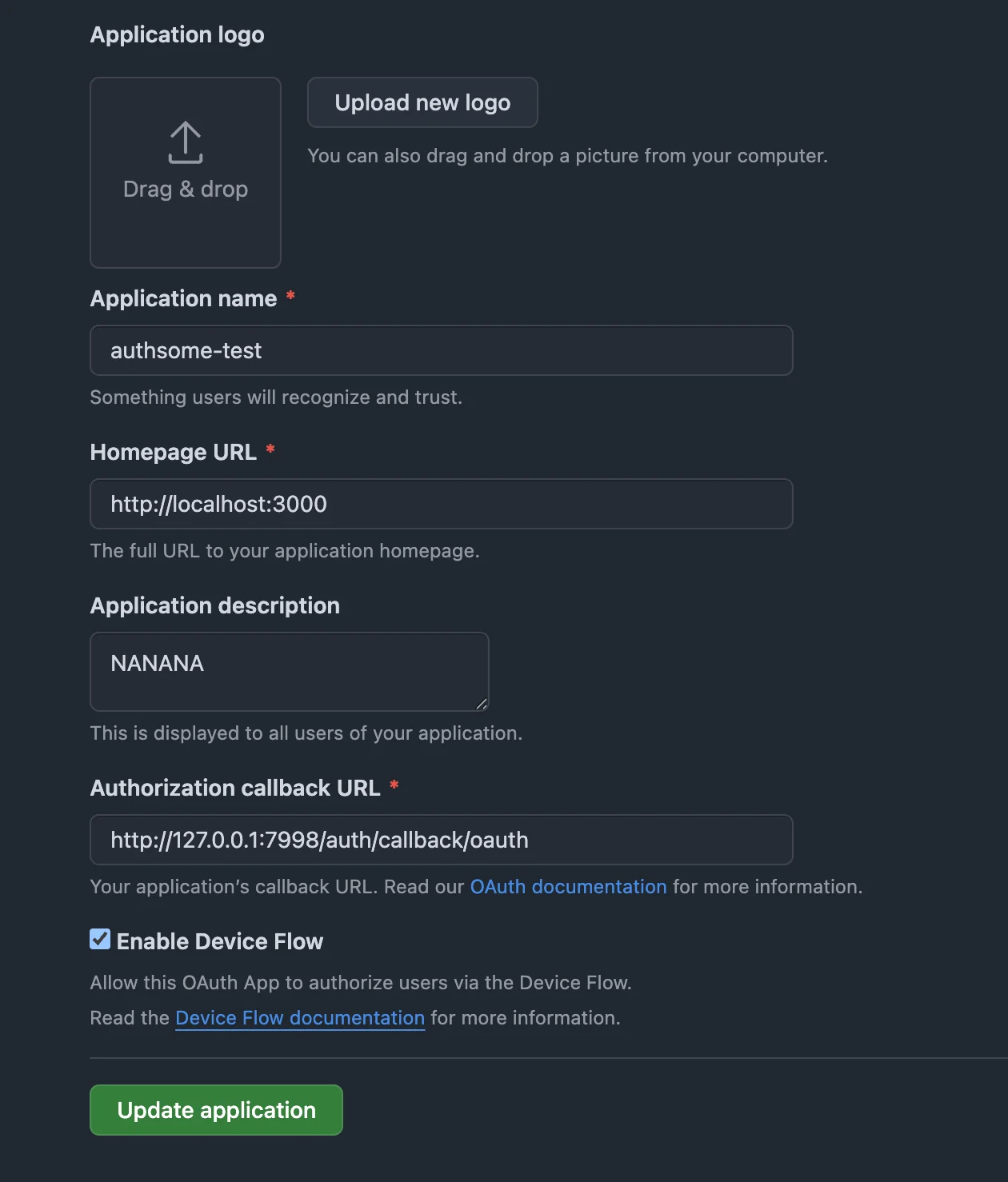
GitHub doesn't support Dynamic Client Registration, so before your first `authsome login github` you need to register an OAuth app once. This is a one-time setup.
Visit [github.com/settings/developers](https://github.com/settings/developers).
The button sits at the top right of the OAuth Apps list.
| Field | Value |
| -------------------------- | ------------------------------------------------------------------------------------------- |
| Application name | Anything memorable, e.g. `authsome (local)` |
| Homepage URL | `http://localhost:3000` (any URL works; GitHub doesn't validate it for OAuth functionality) |
| Application description | Optional |
| Authorization callback URL | `http://127.0.0.1:7998/auth/callback/oauth` |
| Enable Device Flow | ☑ check it on |
The **Authorization callback URL** must be exactly `http://127.0.0.1:7998/auth/callback/oauth`. Authsome's PKCE flow listens only on this address; any other value will fail with `redirect_uri_mismatch` at login time.
Click **Register application**.
GitHub now shows your new app's settings.
1. Copy the **Client ID**.
2. Click **Generate a new client secret** and copy the secret immediately.
Save the **Client Secret** somewhere safe (a password manager) before navigating away. GitHub shows the secret only once. If you lose it, you'll need to generate another one and update your authsome connection.
You'll paste both values into authsome's local browser bridge on the next step. They're stored encrypted in your vault and reused on every subsequent login. They are never accepted as command-line arguments.
### Log in to a provider
```bash theme={null}
authsome login github
```
Authsome opens a local form at `http://127.0.0.1:7998` asking for your GitHub OAuth credentials.
Paste the values you saved during the OAuth app registration. They're encrypted and stored locally; you won't be asked for them again unless you `authsome revoke github`.
 A second browser window opens to `https://github.com/login/oauth/authorize`. Click **Authorize** to grant the requested scopes (`repo` and `read:user` by default). GitHub exchanges the authorization for an OAuth access token, the callback lands on `http://127.0.0.1:7998/auth/callback/oauth`, and authsome stores the token encrypted in your vault. The terminal prints `Successfully logged in to github (default).`
The stored access token is what later commands inject. `client_id` and `client_secret` identify your OAuth app to GitHub; the access token is the user-level credential that makes API calls on your behalf. You don't need a separate PAT.
```bash theme={null}
authsome provider list
```
GitHub should show as `connected`.
For other providers, see [Agent integrations](/integrations/agents/index) or the per-provider page under [OAuth providers](/integrations/oauth/index). API-key providers like OpenAI don't need an OAuth app — see the next section.
### Add an API-key provider
API-key providers like OpenAI use the same login command, but the flow opens a local form so you can paste the key without it appearing in shell history or process listings.
```bash theme={null}
authsome login openai
```
Verify the key was captured:
```bash theme={null}
authsome connections inspect openai --field status
# → connected
```
### Run an agent with injected credentials
A minimal agent that uses both credentials you just set up: it stars `agentrhq/authsome` on GitHub (a small thank-you to the project) and asks OpenAI to write a one-line celebration. The same script works whether you export env vars first or wrap the command with `authsome run --`. Save it as `my_agent.py`.
```python theme={null}
# my_agent.py
# Stars agentrhq/authsome on GitHub and asks OpenAI to write a one-line
# celebration. The same script works whether you eval $(authsome export ...)
# first or wrap the command with `authsome run --`. Under the proxy,
# the env vars below hold the placeholder `authsome-proxy-managed`;
# the proxy substitutes real values in outbound HTTPS to api.github.com
# and api.openai.com.
import json
import os
import urllib.request
def http(method: str, url: str, token: str, body: dict | None = None) -> dict | None:
req = urllib.request.Request(
url,
method=method,
headers={"Authorization": f"Bearer {token}"},
)
if body is not None:
req.data = json.dumps(body).encode()
req.add_header("Content-Type", "application/json")
with urllib.request.urlopen(req) as r:
raw = r.read()
return json.loads(raw) if raw else None
# 1. Star agentrhq/authsome with your GitHub OAuth token.
http(
"PUT",
"https://api.github.com/user/starred/agentrhq/authsome",
os.environ["GITHUB_ACCESS_TOKEN"],
)
print("Starred agentrhq/authsome.")
# 2. Ask OpenAI to celebrate the moment.
answer = http(
"POST",
"https://api.openai.com/v1/chat/completions",
os.environ["OPENAI_API_KEY"],
{
"model": "gpt-5",
"messages": [
{
"role": "user",
"content": (
"Write a single playful sentence to celebrate "
"that I just starred the authsome credential broker."
),
}
],
},
)
print(answer["choices"][0]["message"]["content"])
```
Zero pip dependencies — just the standard library. Now pick how to give it credentials.
#### Run behind the auth proxy
Best for production-style agents. Authsome starts a local HTTP proxy that intercepts outbound requests to known provider hosts and injects the auth headers. The child process never sees the raw secret.
```bash theme={null}
authsome run -- python my_agent.py
```
Inside the child process, `OPENAI_API_KEY` is set to the placeholder `authsome-proxy-managed`. The real key is added to outbound requests at the proxy layer.
HTTPS interception requires the mitmproxy CA certificate to be trusted on your machine. See [Proxy networking](/troubleshooting/proxy-networking) if you see TLS errors.
Notion's MCP endpoint at `mcp.notion.com` supports Dynamic Client Registration. You don't need to create an OAuth app — authsome registers a client for you on first login.
### Log in
```bash theme={null}
authsome login notion_dcr
```
What happens:
Authsome POSTs to `https://mcp.notion.com/register` and Notion's OIDC server issues a fresh `client_id` and `client_secret`. They are stored encrypted in your vault.
A browser window opens to `https://mcp.notion.com/authorize`. Click **Authorize** to grant access to your Notion workspace. The callback lands on `http://127.0.0.1:7998/auth/callback/oauth` and the terminal prints `Successfully logged in to notion_dcr (default).`
```bash theme={null}
authsome provider list
```
`notion_dcr` should show as `connected`.
That's the entire setup. No OAuth app to create, no client credentials to paste.
### Use the connection
The Notion DCR token authenticates requests to `mcp.notion.com`, which is an MCP (Model Context Protocol) endpoint, not a REST API. To put the connection to work, wire it into an MCP-aware agent:
* [Claude Code](/integrations/agents/claude-code) — add an MCP server entry wrapped in `authsome run --`.
* [Cursor](/integrations/agents/cursor) — same pattern in Cursor's MCP config.
* See [Notion (DCR)](/integrations/oauth/notion-dcr) for the per-provider details.
For a runnable Python demo, switch to the **GitHub + OpenAI** tab above. The MCP protocol requires a client library beyond the scope of the quickstart.
## When things go wrong
* **401 / 403 from a provider.** See [Authentication errors](/troubleshooting/auth-errors) for the recovery decision tree.
* **Install or layout issues.** Run `authsome doctor`, then check [Diagnose with doctor](/troubleshooting/doctor).
* **TLS errors during `authsome run`.** See [Proxy networking](/troubleshooting/proxy-networking).
## Next steps
Per-agent setup: Claude Code, Codex, Cursor, OpenCode, LangChain, and more.
Pick the right flow for each provider: PKCE, device code, DCR.
Add any service that authsome doesn't ship as a bundled provider.
Every command, every flag.
A second browser window opens to `https://github.com/login/oauth/authorize`. Click **Authorize** to grant the requested scopes (`repo` and `read:user` by default). GitHub exchanges the authorization for an OAuth access token, the callback lands on `http://127.0.0.1:7998/auth/callback/oauth`, and authsome stores the token encrypted in your vault. The terminal prints `Successfully logged in to github (default).`
The stored access token is what later commands inject. `client_id` and `client_secret` identify your OAuth app to GitHub; the access token is the user-level credential that makes API calls on your behalf. You don't need a separate PAT.
```bash theme={null}
authsome provider list
```
GitHub should show as `connected`.
For other providers, see [Agent integrations](/integrations/agents/index) or the per-provider page under [OAuth providers](/integrations/oauth/index). API-key providers like OpenAI don't need an OAuth app — see the next section.
### Add an API-key provider
API-key providers like OpenAI use the same login command, but the flow opens a local form so you can paste the key without it appearing in shell history or process listings.
```bash theme={null}
authsome login openai
```
Verify the key was captured:
```bash theme={null}
authsome connections inspect openai --field status
# → connected
```
### Run an agent with injected credentials
A minimal agent that uses both credentials you just set up: it stars `agentrhq/authsome` on GitHub (a small thank-you to the project) and asks OpenAI to write a one-line celebration. The same script works whether you export env vars first or wrap the command with `authsome run --`. Save it as `my_agent.py`.
```python theme={null}
# my_agent.py
# Stars agentrhq/authsome on GitHub and asks OpenAI to write a one-line
# celebration. The same script works whether you eval $(authsome export ...)
# first or wrap the command with `authsome run --`. Under the proxy,
# the env vars below hold the placeholder `authsome-proxy-managed`;
# the proxy substitutes real values in outbound HTTPS to api.github.com
# and api.openai.com.
import json
import os
import urllib.request
def http(method: str, url: str, token: str, body: dict | None = None) -> dict | None:
req = urllib.request.Request(
url,
method=method,
headers={"Authorization": f"Bearer {token}"},
)
if body is not None:
req.data = json.dumps(body).encode()
req.add_header("Content-Type", "application/json")
with urllib.request.urlopen(req) as r:
raw = r.read()
return json.loads(raw) if raw else None
# 1. Star agentrhq/authsome with your GitHub OAuth token.
http(
"PUT",
"https://api.github.com/user/starred/agentrhq/authsome",
os.environ["GITHUB_ACCESS_TOKEN"],
)
print("Starred agentrhq/authsome.")
# 2. Ask OpenAI to celebrate the moment.
answer = http(
"POST",
"https://api.openai.com/v1/chat/completions",
os.environ["OPENAI_API_KEY"],
{
"model": "gpt-5",
"messages": [
{
"role": "user",
"content": (
"Write a single playful sentence to celebrate "
"that I just starred the authsome credential broker."
),
}
],
},
)
print(answer["choices"][0]["message"]["content"])
```
Zero pip dependencies — just the standard library. Now pick how to give it credentials.
#### Run behind the auth proxy
Best for production-style agents. Authsome starts a local HTTP proxy that intercepts outbound requests to known provider hosts and injects the auth headers. The child process never sees the raw secret.
```bash theme={null}
authsome run -- python my_agent.py
```
Inside the child process, `OPENAI_API_KEY` is set to the placeholder `authsome-proxy-managed`. The real key is added to outbound requests at the proxy layer.
HTTPS interception requires the mitmproxy CA certificate to be trusted on your machine. See [Proxy networking](/troubleshooting/proxy-networking) if you see TLS errors.
Notion's MCP endpoint at `mcp.notion.com` supports Dynamic Client Registration. You don't need to create an OAuth app — authsome registers a client for you on first login.
### Log in
```bash theme={null}
authsome login notion_dcr
```
What happens:
Authsome POSTs to `https://mcp.notion.com/register` and Notion's OIDC server issues a fresh `client_id` and `client_secret`. They are stored encrypted in your vault.
A browser window opens to `https://mcp.notion.com/authorize`. Click **Authorize** to grant access to your Notion workspace. The callback lands on `http://127.0.0.1:7998/auth/callback/oauth` and the terminal prints `Successfully logged in to notion_dcr (default).`
```bash theme={null}
authsome provider list
```
`notion_dcr` should show as `connected`.
That's the entire setup. No OAuth app to create, no client credentials to paste.
### Use the connection
The Notion DCR token authenticates requests to `mcp.notion.com`, which is an MCP (Model Context Protocol) endpoint, not a REST API. To put the connection to work, wire it into an MCP-aware agent:
* [Claude Code](/integrations/agents/claude-code) — add an MCP server entry wrapped in `authsome run --`.
* [Cursor](/integrations/agents/cursor) — same pattern in Cursor's MCP config.
* See [Notion (DCR)](/integrations/oauth/notion-dcr) for the per-provider details.
For a runnable Python demo, switch to the **GitHub + OpenAI** tab above. The MCP protocol requires a client library beyond the scope of the quickstart.
## When things go wrong
* **401 / 403 from a provider.** See [Authentication errors](/troubleshooting/auth-errors) for the recovery decision tree.
* **Install or layout issues.** Run `authsome doctor`, then check [Diagnose with doctor](/troubleshooting/doctor).
* **TLS errors during `authsome run`.** See [Proxy networking](/troubleshooting/proxy-networking).
## Next steps
Per-agent setup: Claude Code, Codex, Cursor, OpenCode, LangChain, and more.
Pick the right flow for each provider: PKCE, device code, DCR.
Add any service that authsome doesn't ship as a bundled provider.
Every command, every flag.